


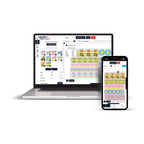
Glow In The Dark DTF Gang Sheet Builder lets you upload, resize, duplicate, and arrange multiple designs within one online layout for specialty DTF transfer production. Build a gang sheet around the artwork sizes and quantities required for your project, review the complete layout, and submit your designs for glow-effect DTF printing.
This ordering method can be useful for apparel brands, print shops, teams, events, personalized merchandise, fashion projects, and other applications that require multiple glow-effect transfers in one organized layout.
Build Glow In The Dark DTF Gang Sheets Online
A gang sheet combines multiple graphics within one larger printable layout. Instead of preparing each transfer as a completely separate order, you can organize different artwork, sizes, and quantities together when they fit within the selected gang sheet.
You can build layouts containing:
- Small chest logos
- Front graphics
- Large back designs
- Sleeve artwork
- Names and numbers
- Repeated logos
- Event graphics
- Fashion and merchandise artwork
How to Use the Glow In The Dark DTF Gang Sheet Builder
Start by determining the finished dimensions and quantities of the transfers you need. Planning these details before arranging the sheet helps keep the layout connected to the actual apparel project.
- Select your gang sheet size: Choose the available sheet dimensions appropriate for your project.
- Upload your artwork: Add your prepared design files to the online builder.
- Set transfer dimensions: Resize each graphic according to its intended finished size.
- Arrange the designs: Position artwork within the available print area.
- Duplicate repeated graphics: Add additional copies when the same design is needed multiple times.
- Review the layout: Check artwork, dimensions, quantities, orientation, and positioning.
- Submit your sheet: Complete the order after reviewing the entire gang sheet.
Prepare Artwork Before Building Your Gang Sheet
The current artwork guidance recommends preparing high-resolution artwork at 300 DPI with a transparent background where required. Clean source artwork gives you a better starting point when resizing and positioning designs within the builder.
Artwork Preparation Checklist
- Use high-resolution artwork.
- Prepare artwork at 300 DPI when possible.
- Use a transparent background when required.
- Confirm spelling in text, names, and numbers.
- Know the intended finished transfer dimensions.
- Keep the original artwork proportions intact.
- Upload the correct approved artwork version.
Arrange Multiple Designs on One Glow DTF Gang Sheet
One of the main advantages of a gang sheet workflow is the ability to organize different graphics within the same layout. A single apparel project might require small front logos, larger back artwork, sleeve designs, or several copies of one graphic.
Each design can be sized according to its intended placement and then arranged within the available sheet area.
Example Gang Sheet Layout
A project could include:
- 10 small left-chest logos
- 10 larger back graphics
- 5 additional merchandise designs
- Several replacement graphics
These graphics can share one gang sheet when their combined dimensions fit within the selected layout.
Duplicate Repeated Glow DTF Designs
If your project requires several copies of the same design, duplication allows repeated artwork to be added without uploading the same file for every transfer.
Set the finished dimensions first, then duplicate the graphic according to the quantity needed. This can be useful for logos, team graphics, merchandise designs, event artwork, and recurring branded apparel.
Choose Transfer Sizes Before Arranging the Sheet
The dimensions of each transfer determine how much gang sheet space it requires. A small chest logo occupies considerably less space than a large front or back design.
Record the intended width and height of each graphic before arranging your layout. This is particularly useful when multiple garments need the same logo at consistent dimensions.
If you prefer ordering individual transfers according to their finished dimensions instead of arranging a gang sheet, explore the available Special DTF Transfers.
Use the Available Gang Sheet Area Efficiently
After the required designs have been added, review the remaining layout space. Depending on the artwork dimensions, you may be able to arrange additional required graphics or repeated designs within available areas.
The goal is not simply to fill every empty space. Prioritize the correct dimensions, quantities, orientation, and artwork version first. Layout efficiency should not come at the expense of an incorrect transfer.
Build Your Glow DTF Gang Sheet
Prepare your artwork, select the required dimensions, arrange your designs, and review your specialty DTF layout.
Explore Special DTF TransfersWhat Is the Glow In The Dark Effect?
Glow in the dark DTF is a specialty transfer option intended for projects where a luminous visual effect is part of the design concept. It differs from standard DTF transfers because the specialty effect changes how the finished artwork can appear under different lighting conditions.
This type of transfer can be considered for:
- Fashion and streetwear
- Event merchandise
- Performance apparel
- Decorative graphics
- Novelty apparel
- Custom merchandise
- Specialty branded designs
Plan Artwork Around the Glow Effect
A specialty effect becomes part of the finished artwork, so designs should be evaluated with that appearance in mind. Artwork that works well as a standard transfer may present differently when used with glow-effect media.
Consider:
- Artwork size and shape
- Color composition
- Text readability
- Garment color
- Transfer placement
- Normal-light appearance
- Low-light appearance
For a new design or garment combination, consider testing the finished transfer before committing to a larger production quantity.
Glow In The Dark Gang Sheets vs. Standard DTF Transfers
The primary difference is the intended visual finish. Glow-effect transfers are designed for projects where the specialty luminous appearance contributes to the design concept. Standard DTF transfers are appropriate when that effect is not required.
For conventional transfer options, browse the DTF Transfers collection.
Gang Sheet Builder vs. Transfers By Size
Choose the ordering method based on how you want to prepare your artwork.
Use the Gang Sheet Builder when you want to arrange multiple designs, sizes, or repeated graphics yourself within one larger layout.
Choose Transfers By Size when you prefer to order individual graphics according to selected finished dimensions without arranging a complete gang sheet yourself.
Both approaches can support specialty transfer projects, but they serve different ordering workflows.
Review Your Glow DTF Gang Sheet Before Submission
Review the entire sheet before completing your order. A final check is particularly important when the layout contains several designs or different transfer dimensions.
Final Gang Sheet Checklist
- Are all required designs included?
- Is the correct artwork version being used?
- Are the transfer dimensions correct?
- Are repeated graphics included in the required quantities?
- Is all text spelled correctly?
- Are artwork proportions preserved?
- Are designs positioned within the available print area?
- Have you reviewed the complete sheet before submission?
Save Your Layout Information for Reorders
If the same apparel project may be reordered later, keep a simple record of the production details. This can make it easier to rebuild a similar gang sheet without relying on memory.
- Approved artwork files
- Finished transfer dimensions
- Quantity of each design
- Gang sheet size
- Front, back, sleeve, or other placement
- Garment or project reference
Frequently Asked Questions About Glow In The Dark DTF Gang Sheet Builder
What is a Glow In The Dark DTF Gang Sheet Builder?
It is an online layout tool used to upload, resize, duplicate, and arrange multiple designs within one gang sheet for glow-effect DTF transfer production.
Can I put multiple designs on one glow DTF gang sheet?
Yes. Different graphics can be arranged together when they fit within the dimensions of the selected gang sheet.
Can I use different transfer sizes on the same gang sheet?
Yes. Different design sizes can share one layout when each graphic is set to its intended finished dimensions and fits within the available print area.
Can I duplicate the same design?
Yes. Repeated graphics can be duplicated according to the quantity required for your project.
What resolution should my artwork be?
The current artwork guidance recommends preparing high-resolution artwork at 300 DPI.
Should my artwork have a transparent background?
Use a transparent background when the design requires the surrounding area to remain free of unwanted background artwork.
How many designs can I fit on one gang sheet?
The number depends on the selected gang sheet dimensions, individual transfer sizes, quantities, artwork shape, and layout arrangement.
Should I choose a gang sheet or transfers by size?
Use a gang sheet when you want to arrange multiple graphics yourself. Choose transfers by size when you prefer individual designs ordered according to selected dimensions.
Build Your Glow In The Dark DTF Gang Sheet
Prepare your artwork, determine the finished transfer dimensions and quantities, then use the Glow In The Dark DTF Gang Sheet Builder to organize your designs into one layout. Review the complete sheet carefully before submitting it for specialty DTF production.
Explore Special DTF Transfers or browse the DTF Transfers collection for additional options.